Designing AI UX, Beyond the Chatbox
AI UX is evolving beyond generic chat windows. Discover how inline suggestions, context-aware side panels, and intelligent forms create more intuitive experiences for non-technical users. Learn interface patterns that embed AI naturally into workflows—making assistance feel invisible while dramatically improving productivity and user satisfaction.
9/23/20246 min read
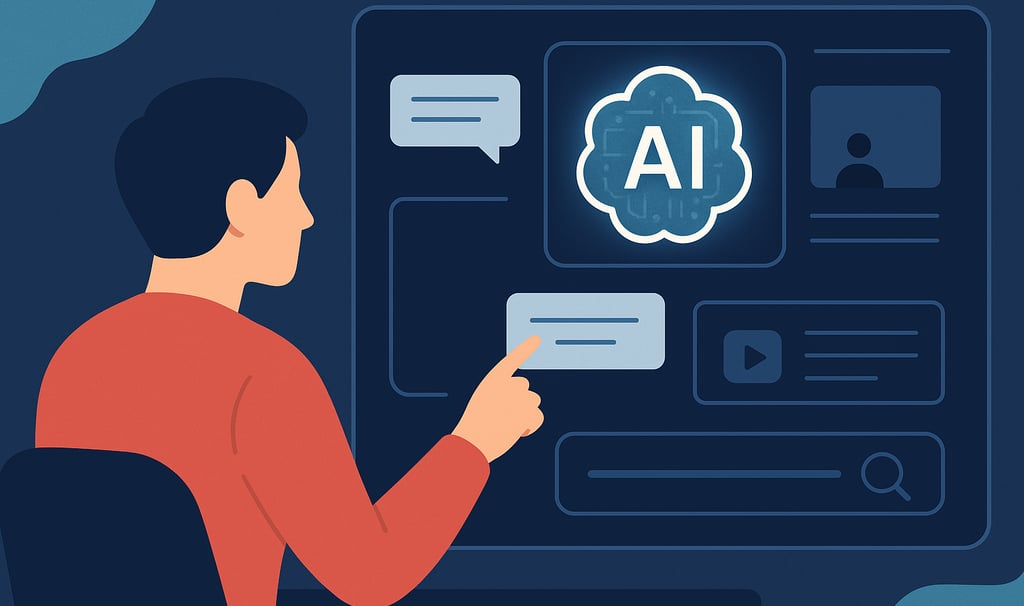
The chat interface has become the default face of AI. Open any new AI product and you'll likely find the familiar pattern: an empty text box, blinking cursor, and the invitation to "Ask me anything." It's comfortable, familiar, and increasingly insufficient.
While the chatbot paradigm works beautifully for certain use cases, it forces users into an unnatural interaction model for many everyday tasks. Your grandmother shouldn't need to learn prompt engineering to get her email drafted properly. Your sales team shouldn't have to stop their workflow to open a separate chat window when AI could assist them inline. The future of AI UX isn't about better chatbots—it's about making AI disappear into the interfaces people already understand.
The Chatbox Problem
The standalone chat interface creates friction in several ways. It separates users from their primary workflow, forcing context switching between the task at hand and the AI conversation. For non-technical users, the blank canvas problem looms large—how do you start when you don't know what to ask? The open-ended nature that makes chatbots powerful also makes them intimidating.
Teams are exploring different integration relationships: system scope (how much of the system AI manages), spatial positioning (where AI appears relative to functionality), and functional interaction (how AI engages with on-screen features). Each approach yields different user experiences and levels of adoption.
More fundamentally, chat as the primary interface assumes users know exactly what they want before they begin. Real work rarely happens that way. People discover needs through doing, adjust course based on results, and often benefit most from assistance precisely when they can't articulate the problem clearly.
Inline Suggestions: AI That Reads Your Mind
The most effective AI interfaces anticipate user needs without requiring explicit requests. Inline prompts function as dynamic augmentation tools where users engage with suggestions immediately—accepting, editing, undoing, or regenerating content while maintaining task continuity.
GitHub Copilot pioneered this approach in code editors, suggesting completions as developers type. The pattern has spread across writing tools, with applications like Grammarly offering contextual improvements that appear precisely where users need them. The key insight: assistance feels natural when it arrives in the flow of work rather than requiring a detour.
Research on code suggestion interfaces revealed five design principles: suggestions must be immediately visible for easy discovery, explicitly show both existing and proposed changes side-by-side, reuse familiar interface elements to reduce cognitive load, display the complete suggestion before users commit, and allow users to dismiss suggestions to prevent interruptions.
The results speak for themselves. Inline interfaces using gray text produced a 3.5x increase in usage, while single-line diff views led to a 176% increase in accepted suggestions from 29% more users.
For non-technical users, inline suggestions eliminate the need to understand how AI works. The suggestion simply appears, context-appropriate and immediately actionable. Accept it or ignore it—no prompting required.
Side Panels: AI as Copilot
When tasks require more substantial AI assistance than inline suggestions can provide, side panels offer a middle ground between embedded help and standalone chat. Microsoft 365 Copilot Chat delivers a side-by-side experience that remains aware of users' open content in applications like Word, Excel, PowerPoint, OneNote, and Outlook.
The side panel pattern succeeds because it maintains visibility of the primary work surface while providing dedicated space for AI interaction. Users don't lose context or abandon their document to access AI capabilities. The panel can display richer outputs—analysis, alternatives, explanations—without disrupting the main workflow.
Context awareness becomes the differentiator. Earlier versions of Microsoft's Edge Copilot sidebar demonstrated this well, offering to summarize YouTube videos with clickable timestamps or providing page-specific actions based on what users were viewing. When the interface was redesigned with generic prompts disconnected from browsing context, user pushback was swift and vocal. The fundamental disconnect emerged between a general consumer chatbot and the specific, focused value of an AI tool serving as a companion to the browsing experience.
The lesson: AI side panels must be genuinely context-aware, not just present. They should offer relevant actions based on what's on screen, surface appropriate suggestions proactively, and maintain conversation history so users can build on previous interactions without starting over.
AI-Augmented Forms: Structure Meets Intelligence
Forms represent a sweet spot for AI assistance. Users understand the structured input paradigm, but AI can dramatically reduce the effort required. Rather than forcing users to describe what they want in natural language, AI-augmented forms provide structure while intelligently filling or suggesting content.
Structured templates can be filled by users or pre-filled by AI, with different actions users can direct AI to complete. A job posting form might auto-populate based on a brief description. An expense report could extract information from uploaded receipts. A customer support ticket system could suggest category, priority, and assignment based on the description text.
This pattern works particularly well for non-technical users because the form provides clear guidance about what information is needed while AI reduces the manual labor. The structure prevents the blank canvas problem while intelligence handles the tedious parts.
The approach also enables progressive disclosure of AI capabilities. Users start with a familiar interface, then discover AI assistance as they encounter friction. The enhancement feels optional rather than mandatory, reducing resistance from users skeptical of AI.
Context Bundling: Understanding Intent Beyond Words
Context bundling has emerged as a key trend, where the evolution mirrors how GUIs facilitated deeper user interactions by supporting multiple program interfaces, allowing seamless transitions between different tasks like accounting in one application and reporting in another.
Modern AI interfaces increasingly pull contextual information automatically rather than requiring users to provide it explicitly. An AI writing assistant in email knows you're composing to a customer, can reference your previous exchanges, understands your company's tone guidelines, and has access to relevant product documentation—all without you explaining any of it.
For non-technical users, this removal of context management represents perhaps the single biggest usability improvement. Instead of crafting detailed prompts that explain the situation, users simply indicate what they want done. The interface handles connecting relevant data sources, applying appropriate constraints, and maintaining context across interactions.
Browser extensions and application integrations enable this seamless context flow. Emergent examples include Edge, Chrome, and Pixel Assistant integrating AI functionality to allow users to employ generative AI to interface with their software.
Three Patterns Working Together
The most sophisticated AI products don't pick a single pattern—they orchestrate multiple approaches for different use cases. Three clear UX patterns work well together: collaborative (two-way chat for uncertain needs), embedded (automatic recommendations), and asynchronous (background tasks), with successful products using all three modes within a single product to accomplish hundreds of tasks.
Cursor, the AI-powered code editor, exemplifies this approach. It offers chat for exploratory questions, inline edits for targeted code modifications, and background agents for comprehensive refactoring tasks. Users naturally gravitate to whichever mode matches their immediate need without thinking about the underlying mechanics.
This multi-modal approach recognizes that user needs vary by task, urgency, and confidence level. Sometimes you want to have a conversation. Sometimes you want instantaneous inline help. Sometimes you want to delegate a task entirely and check results later. Great AI UX accommodates all three.
Design Principles for Non-Technical Users
Several principles emerge for making AI interfaces accessible to everyone, not just power users:
Discoverability through visibility. Don't hide AI features behind menus or rely on users knowing magic commands. Alert users to AI actions they can take, especially if they're just getting started. Use clear visual indicators that AI assistance is available.
Start with examples. Share sample generations, prompts, and parameters to educate and inspire users. Rather than a blank input box, show what's possible with concrete examples users can adapt.
Progressive assistance. Get more information from users when the initial prompt isn't sufficiently clear. Rather than producing poor results from vague input, guide users through clarifying questions that feel like helpful conversation rather than error messages.
Show the work. Show users what is actually happening behind the scenes. Transparency about AI processing builds trust and helps users understand why results look the way they do. It also provides teaching moments that improve future interactions.
Human in the loop. Maintain user oversight and agency throughout. AI should propose, users should decide. Clear accept/reject mechanisms, easy undo options, and iterative refinement keep users in control while benefiting from AI capabilities.
The Path Forward
The chat interface will remain relevant for exploratory conversations, complex queries, and situations where users genuinely want to engage in dialogue with AI. But it shouldn't be the only—or even the primary—way users interact with AI systems.
The next generation of AI UX will feel invisible to users. They'll experience better autocomplete, smarter suggestions, more intuitive interfaces, and faster workflows. They won't necessarily think "I'm using AI"—they'll just notice tasks becoming easier.
For designers and product teams, this means thinking beyond the chatbox. Ask not "How do we add a chatbot?" but rather "Where in the existing workflow would AI assistance provide value?" The answer might be inline suggestions during composition, a context-aware side panel for complex tasks, intelligent form pre-filling, or background processing of routine work.
The measure of success isn't whether users engage with AI—it's whether AI helps them accomplish their goals more effectively. Sometimes the best AI UX is the one users don't even notice is there.